How to Use Nōtare
Start with a short test before an important meeting. Check permissions and any model setup required by your selected mode. Record with the required agreement, then check one decision in the transcript or summary against what was said.
Download & Set Up
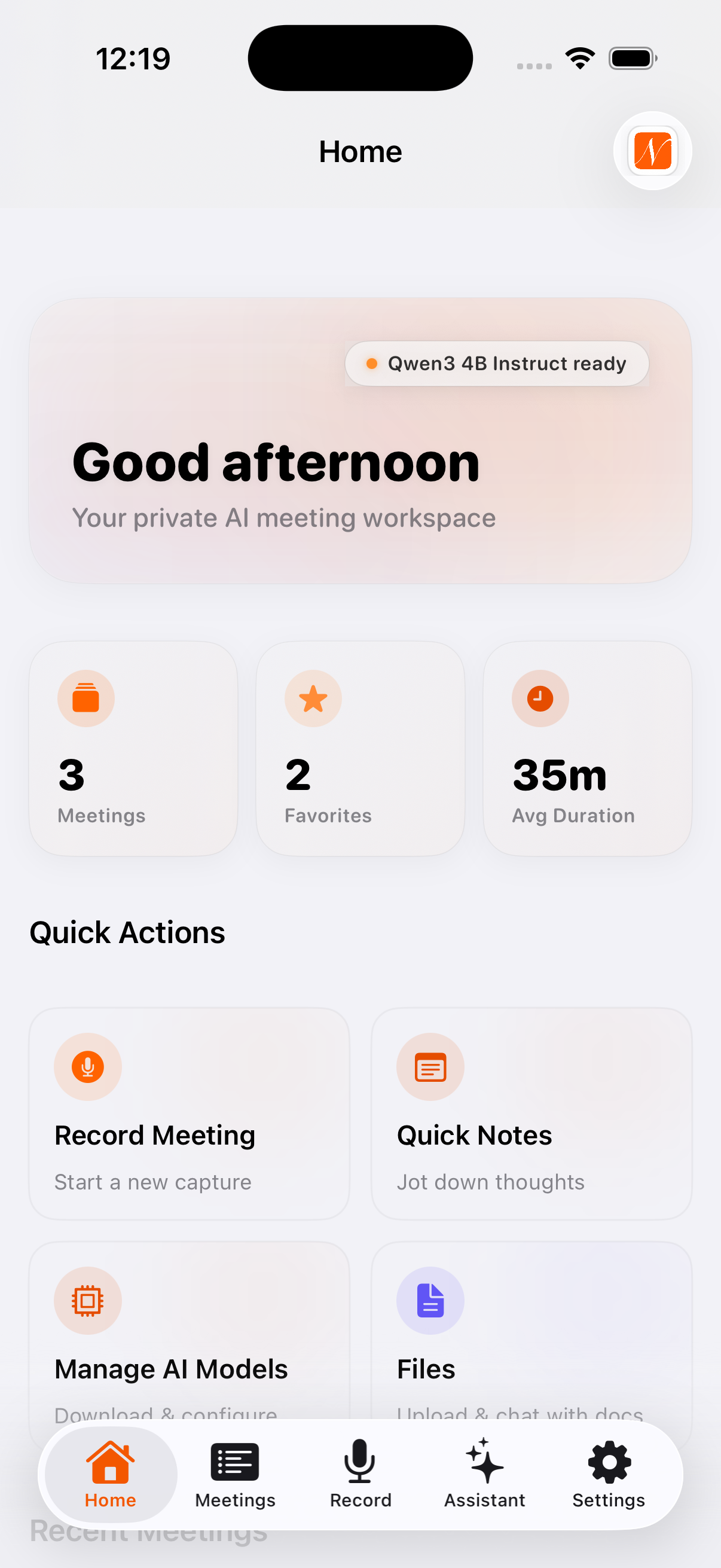
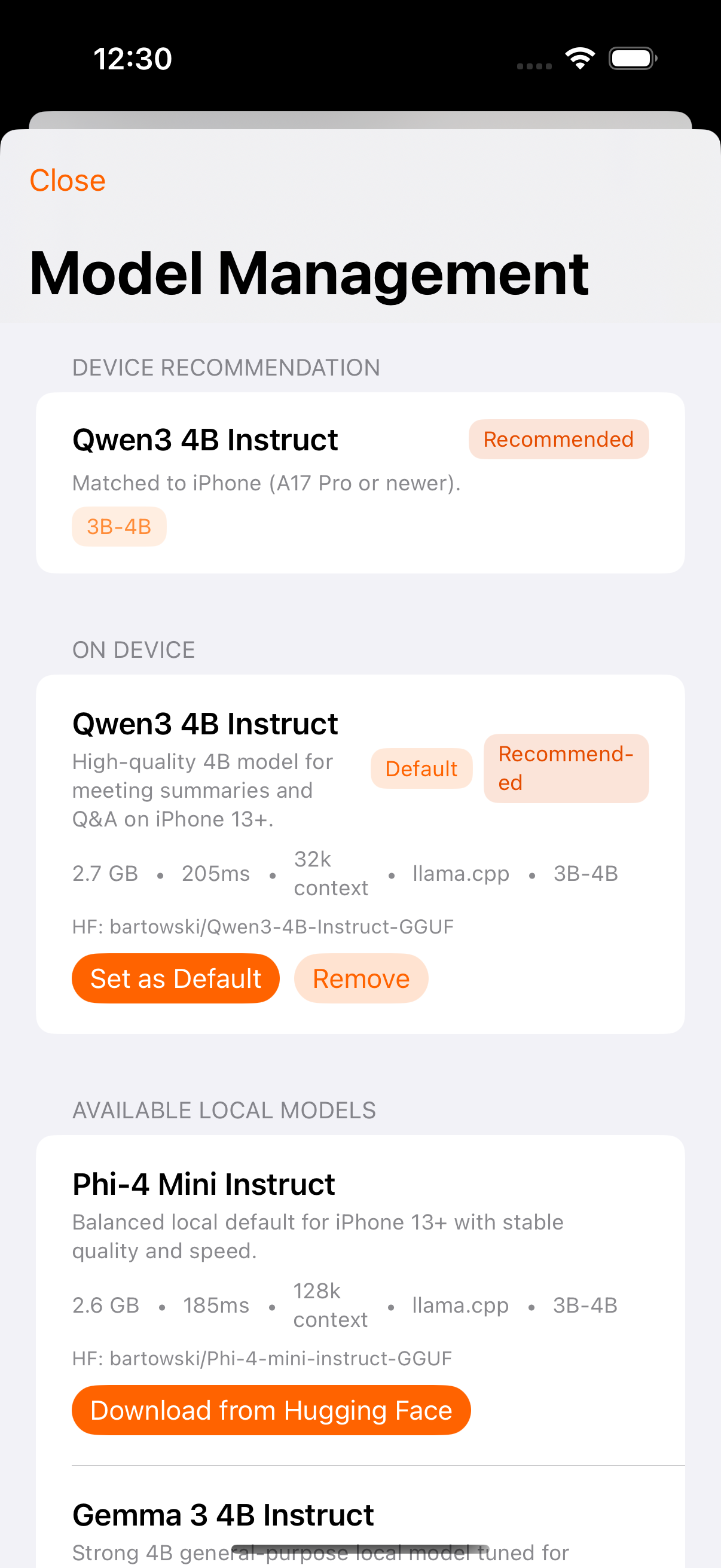
Download Nōtare from the App Store and open it. The app guides you through a quick setup — follow the model setup shown for your device. Download any required local model before relying on it without a connection.
Create a Meeting
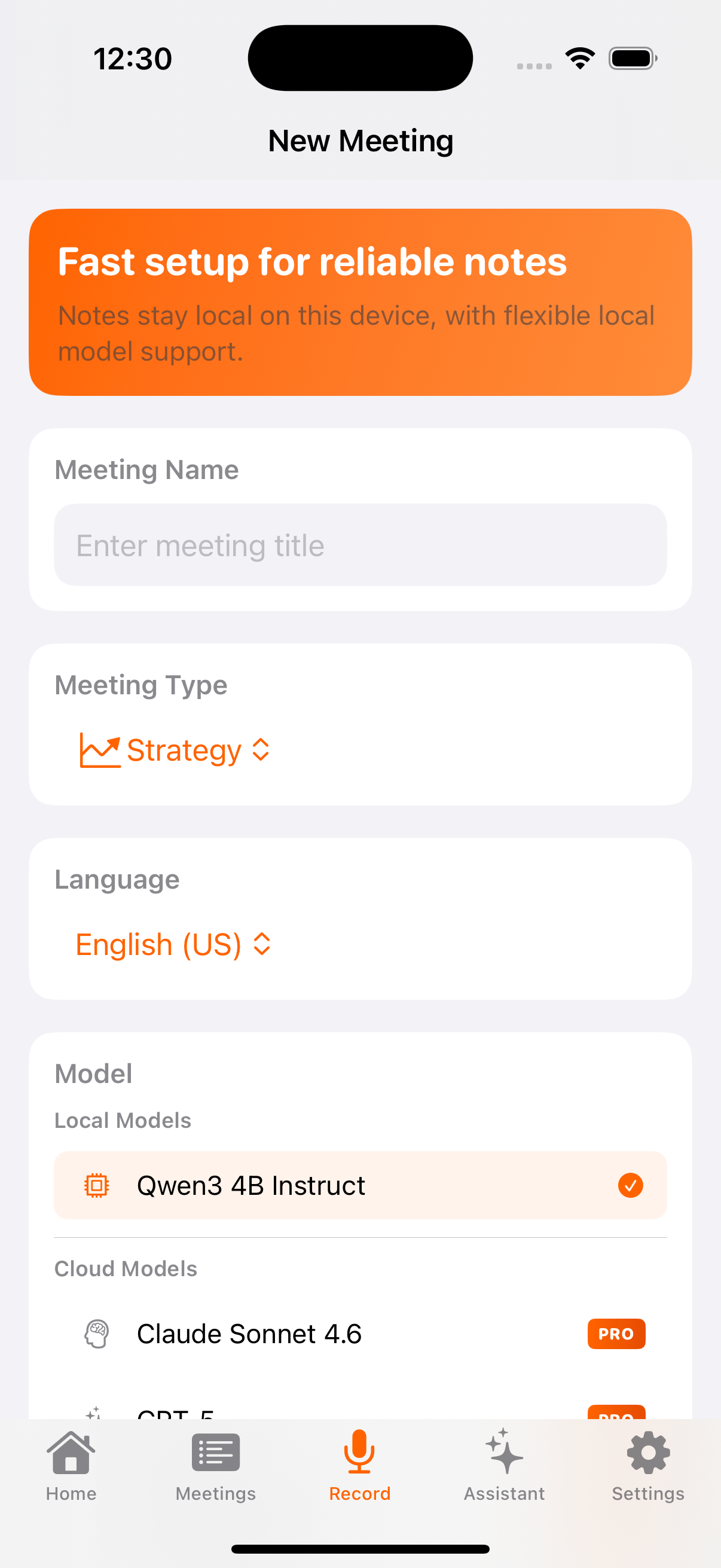
Tap "Start Meeting" to create a new session. Give it a title, select a meeting type (Strategy, Brainstorm, etc.), and add any participants. The setup takes seconds.
Record Your Meeting
Check microphone and speech-recognition permissions, get everyone’s agreement, and make a short test recording. Apple Speech transcription may use Apple servers depending on device, language, and settings.
Review AI Summaries
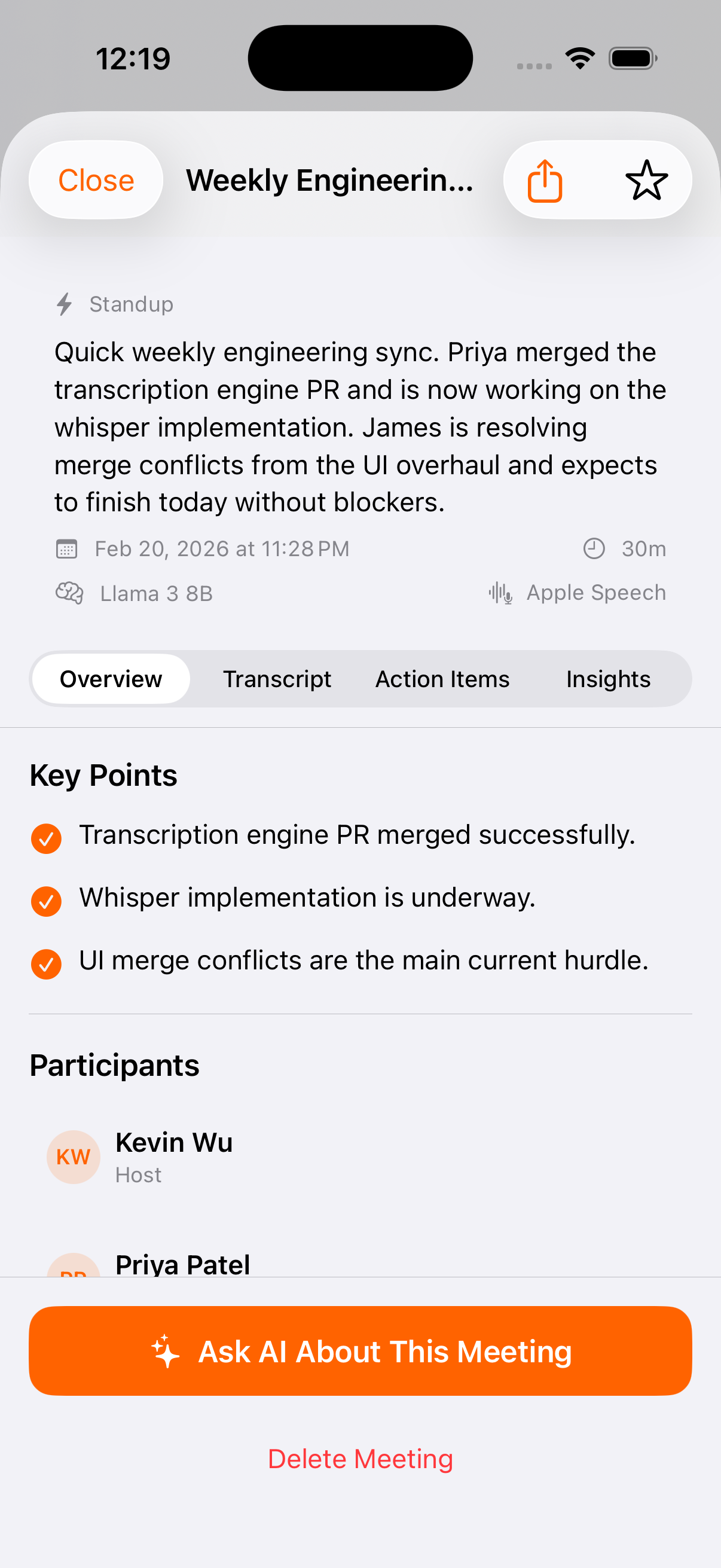
Review the transcript and any generated summary after recording. Summary availability depends on your selected mode and model readiness. Check decisions and action items against the conversation before relying on them.
Ask AI About Your Meetings
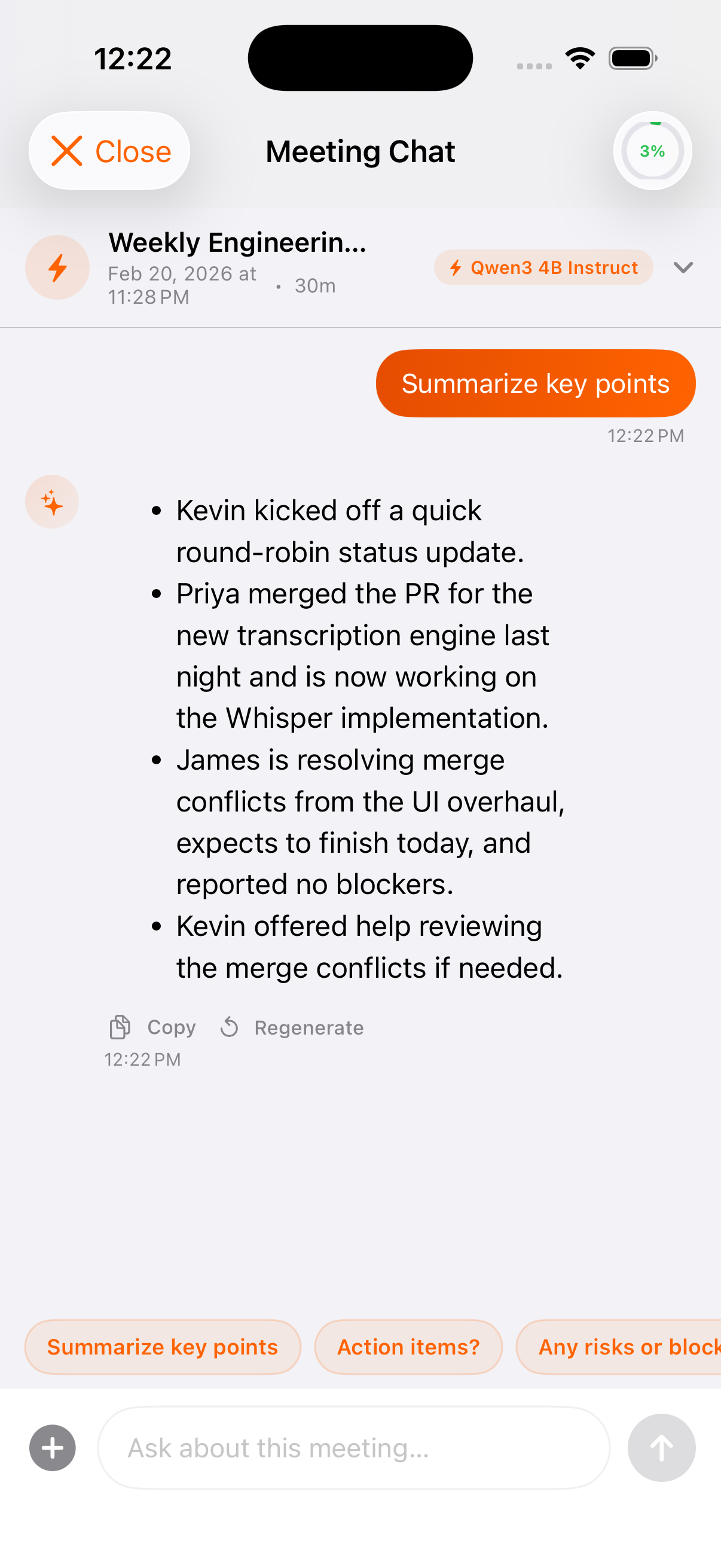
Open the AI Assistant and chat with any meeting transcript. Ask "What were the action items?" or "Who owns the follow-ups?" and review the answers. Local models need to be ready on your device; optional subscriber cloud models send relevant text to the selected provider.
Check a Summary Before You Use It
Review the source conversation rather than accepting an AI answer as fact. Keep an action, its owner, and its timing separate. If any detail is missing, leave it unconfirmed and ask.
A fictional action-item exercise
This is an original learning example, not an app result or a customer meeting.
“Morgan will send the revised agenda by Tuesday. We still need someone to check the budget; we have not agreed a date.”
| Action | Owner | Timing |
|---|---|---|
| Send revised agenda | Morgan | By Tuesday |
| Check budget | Unconfirmed | Unconfirmed |
“Tuesday” is the wording in the example, not an inferred calendar date. The source does not assign the budget check to Morgan. Do not fill either gap from context or guesswork.
Before your next meeting
Revisit the prior decision and any unresolved owner or date. Confirm those details with the people involved. This is a manual review practice, not a promise of automatic task assignment, reminders, or cross-meeting analysis.
If a transcript or summary is missing, start with setup and processing help. Use the download page for the iPhone app and separate desktop betas; check processing details before choosing a mode.
Pro Tips for Better Results
Get the most out of Nōtare with these tips.
Name Your Meetings
Give each meeting a descriptive title. It helps you find recordings later and gives the AI more context for better summaries.
Keep Your Phone Close
For best audio quality, place your phone on the table or near the speakers. The closer the microphone, the better the transcription.
Check Your Processing Mode
Local storage does not mean every processing step is offline. Apple Speech may use Apple servers. Optional cloud AI sends relevant text, and remote transcription sends audio, to providers. Read the processing and privacy details before use.
Star Important Meetings
Mark critical meetings as favorites so you can quickly find them later. Use meeting types to organize by category.